> For the complete documentation index, see [llms.txt](https://spacecore.gitbook.io/wiki/llms.txt). Markdown versions of documentation pages are available by appending `.md` to page URLs; this page is available as [Markdown](https://spacecore.gitbook.io/wiki/en/windows/rdp-connection-configuration.md).
# Configuring the RDP connection
{% hint style="danger" %}
### This content is outdated
**The knowledge base has moved →** [**https://wiki.spacecore.pro/**](https://wiki.spacecore.pro/)
This wiki is no longer updated. All current guides and articles are at the new address.
{% endhint %}
{% content-ref url="" %}
{% endcontent-ref %}
***
Information about configuring a Microsoft mini-application to connect to remote servers using the RDP protocol.
## Remote Connection Settings
In the main window, we can save or open a file for a quick connection to the server.
When using the Save As button, a new **.rdp** file appears on the desktop
We click on the file twice, a scoreboard pops up with a re-confirmation of the connection. Check the box and click **Connect**.
Ready! We are still connected to our server, but even faster.
## Screen
Here you can configure the permissions of the server management window, as well as the color depth and display of the connection panel.
## Local resources
In this section, you can configure the transmission of Remote Desktop sounds, keyboard shortcuts available for use, as well as additional devices.
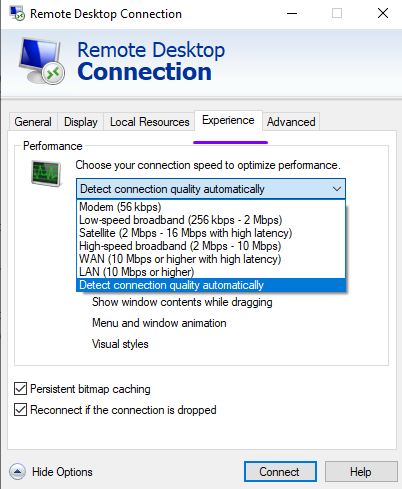
## Interaction
Setting the basic network settings for connection, if desired, you can choose the option you need.
The Permanent Bitmap Caching feature is used to prevent problems with the black screen when connected. We also leave a check mark to Restore the connection in case of disconnection.
## Additionally
You can configure server certificate authentication by selecting the following options: «**Connect without warning**», «**Warn**», «**Do not connect**». It is also possible to configure connections through gateways.