> For the complete documentation index, see [llms.txt](https://spacecore.gitbook.io/wiki/llms.txt). Markdown versions of documentation pages are available by appending `.md` to page URLs; this page is available as [Markdown](https://spacecore.gitbook.io/wiki/en/windows/password-change.md).
# Changing the password
{% hint style="danger" %}
### This content is outdated
**The knowledge base has moved →** [**https://wiki.spacecore.pro/**](https://wiki.spacecore.pro/)
This wiki is no longer updated. All current guides and articles are at the new address.
{% endhint %}
{% content-ref url="" %}
{% endcontent-ref %}
***
This article will help you fix the situation when you forgot your Windows Server account password. Only the built-in methods are used without downloading additional programs.
if you can't change the **Windows Server** password in the [VMmanager](https://spacecore.cloud/) panel due to errors, then here's what you should do.
***
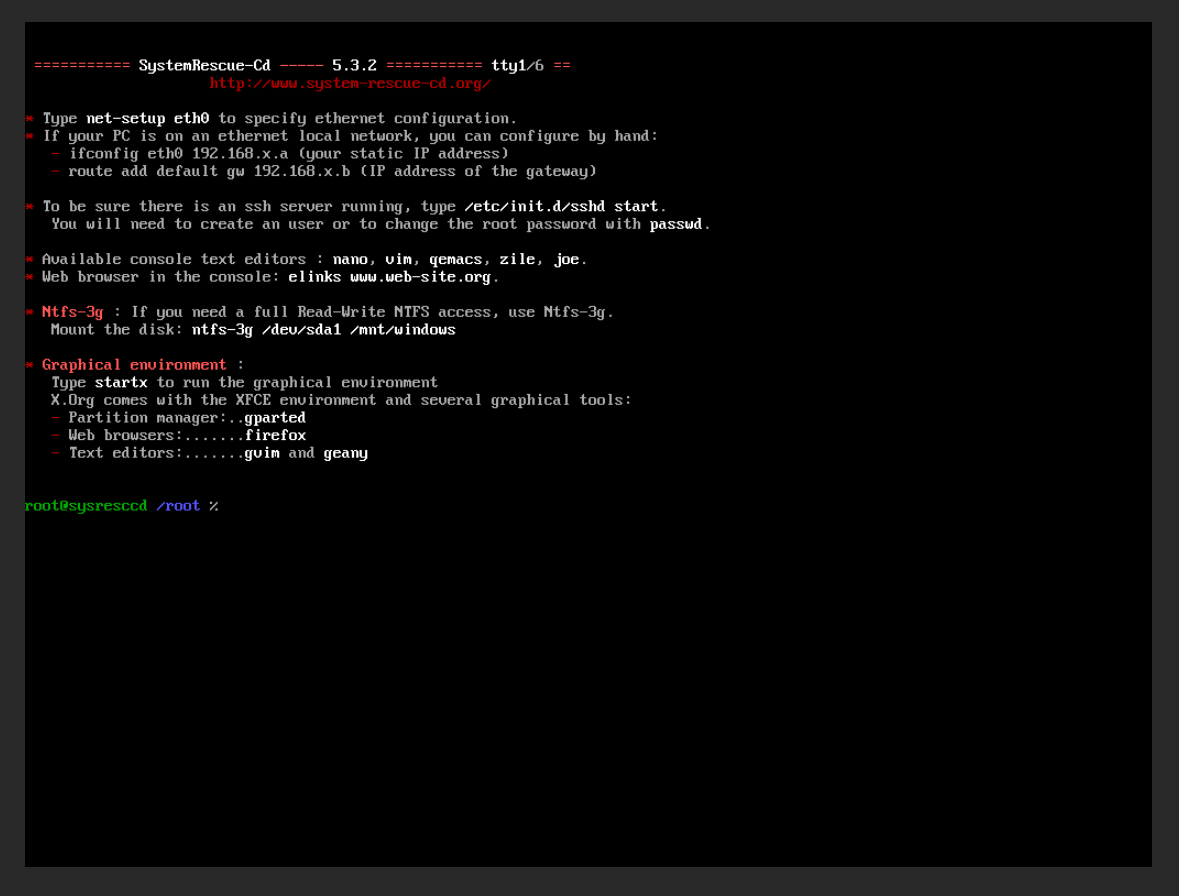
To restore access, we will use the **SystemRescueCD** utilities.
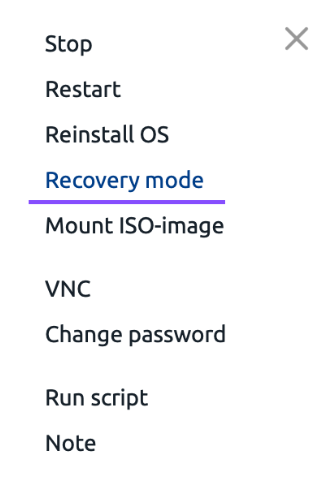
First we go to **VmManager panel**, then we select our server, press «**Menu**» button. In the opened window press the button «**Recovery mode**».
After clicking, an information window opens with confirmation of the action.
Click "**Start mode and restart**". Our server restarts and activates recovery mode.
After a while, the server started up again.
Next, we need to connect to the server via **VNC**, use the appropriate button:
We successfully connected to the server with **VNC**.
Now we need to enter a command to check the existing partitions:
```
fdisk -l
```
After executing according to the standard, we see these sections:
Connect the partition with the Operating system using the command
```
mount /dev/vda2 /mnt
```
Now we need to go to the directory with the system file settings.
```
cd /mnt/Windows/System32/config/
```
Next, we need to display a list of Windows users, use the command
```
chntpw -l SAM
```
As a standard, we see 4 users.
{% hint style="info" %}
**RID** is the unique identifier of the account.
**Username** is the name of the account.
**Admin?** — checks whether the user has administrator rights.
**Lock?** — responsible for the availability of protection tools for users.
{% endhint %}
Use the command to change the **Administrator** account:
```
chntpw SAM
```
Please note that the command is used to change the data of another user
```
chntpw -u SAM
```
{% hint style="info" %}
**\** — for example, **Guest**.
{% endhint %}
The user editing menu opens, we write the number "1" to clear the password.
We check for a password using the command
```
chntpw -l SAM
```
Great, now the **Administrator** account does not have a password.
Go back to the [VMmanager](https://spacecore.cloud/) panel and click the "Recovery mode" button.
We use «**Disable mode and restart**».
The server is running normally
Now we can easily change the password from the service. Use the button «**Change password**», as in the screenshot.
Enter a new password or generate automatically, then click «**Save**».
The password change was successful
Try connecting to the server via remote access with a new password.
Waiting to connect.
We have successfully joined our **VDS** on **Windows Server 2019!**