> For the complete documentation index, see [llms.txt](https://spacecore.gitbook.io/wiki/llms.txt). Markdown versions of documentation pages are available by appending `.md` to page URLs; this page is available as [Markdown](https://spacecore.gitbook.io/wiki/en/windows/downloading-files.md).
# Download files
{% hint style="danger" %}
### This content is outdated
**The knowledge base has moved →** [**https://wiki.spacecore.pro/**](https://wiki.spacecore.pro/)
This wiki is no longer updated. All current guides and articles are at the new address.
{% endhint %}
{% content-ref url="" %}
{% endcontent-ref %}
***
Surely many people have encountered the problem that the standard installed Internet Explorer browser on Windows Server does not allow you to download the desired file, let’s fix!
{% hint style="info" %}
All steps in the instructions are performed on Windows Server 2019.
{% endhint %}
Connect to a remote server. Open Internet Explorer, select the recommended settings and click **OK**.
When trying to go to the page of the site we get another warning, leave a tick and click **OK**.
Then the security system also shows the error, remove the checkmark from the item that will continue to send warnings and press the Close button.
If you try to download the file, you will be told that the security settings do not allow this action, click OK.
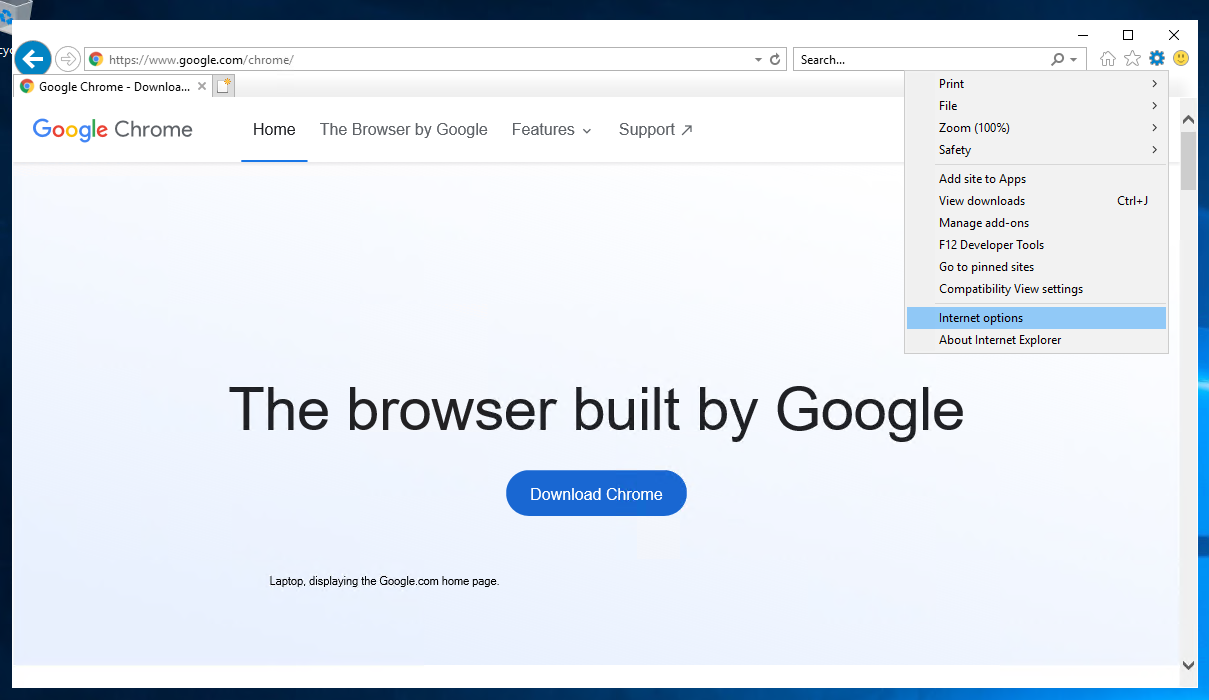
Then we need to find and select the gear in the top corner of the browser. Then click on the **Internet options** button.
Before us opens a special window, go to the section **Security.**
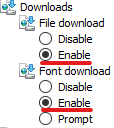
Remove the checkmark from the Enable Protected Mode and click on the Custom level button. In the opened window, you can view the sections below and look for them:
Set both to Enable.
{% hint style="info" %}
The first is the ability to download any **files**.
The second is responsible for downloading **fonts**.
{% endhint %}
Next, press the OK button to apply the parameters, the warning appears:
Accept the changes by selecting the **Yes** button.
In the last settings window, press **Apply** to apply the changes fully:
Again, we get a warning, agree and close the settings window.
Now we can download any files from websites without any problems. First of all remember to install a new browser!