# How to use VPS/VDS?

## Getting data

If you have not purchased your server yet, you can use our[ instructions](https://wiki.spacecore.pro/v/en/customer-service/how-to-place-an-order). After the server is activated, you will receive an email with all the data for work.

{% hint style="info" %}
If you are not ordering a virtual server for the first time, the password for the control panel will be replaced with the «password was sent to you in the activation letter of the previously ordered server».
{% endhint %}

<figure><img src="https://287241268-files.gitbook.io/~/files/v0/b/gitbook-x-prod.appspot.com/o/spaces%2FyXvdNIxNLIOcexv7AfU2%2Fuploads%2Fa2JEDlfZgjhwmUTFw9Sc%2Fimage_2024-05-03_08-45-10.png?alt=media&#x26;token=44c2432e-3f07-42fc-8451-7972c067ee7b" alt=""><figcaption></figcaption></figure>

<details>

<summary>I didn't receive the email, what should I do?</summary>

This is possible in rare cases of failures of our mail servers.

If you have checked all sections, including SPAM and there is no activation letter anywhere, you can find the data in [your account](https://billing.spacecore.pro/). Login and then select the section of your service, in this case «Virtual Servers», then check the box on a particular server and click on the button «Instructions», as indicated in the screenshot.

![](https://287241268-files.gitbook.io/~/files/v0/b/gitbook-x-prod.appspot.com/o/spaces%2FyXvdNIxNLIOcexv7AfU2%2Fuploads%2FEF61M8ZsyCIbtxD6TfrO%2Fimage.png?alt=media\&token=ed9ea7e1-6acd-471e-90ab-1c0106a66747)

</details>

## Connecting to the server

{% tabs %}
{% tab title="If the server is on Linux" %}
**SSH** and **sFTP** services are pre-installed on most popular server OS with Linux kernel, such as Ubuntu, Debian, and CentOS. You can connect to your server without additional settings.

## Connecting via SSH

You can use free programs such as **Termius, Putty, WinSCP, MobaXterm** and others. In this example, we will use **Termius** — the simplest and most convenient.

You can download **Termius** from the official website using the links:

<table data-view="cards"><thead><tr><th></th><th data-hidden></th><th data-hidden></th><th data-hidden data-card-cover data-type="files"></th><th data-hidden data-card-target data-type="content-ref"></th></tr></thead><tbody><tr><td>Windows</td><td></td><td></td><td><a href="https://287241268-files.gitbook.io/~/files/v0/b/gitbook-x-prod.appspot.com/o/spaces%2FyXvdNIxNLIOcexv7AfU2%2Fuploads%2F1OuS9Eymlm3I7USjzLDp%2Fimage.png?alt=media&#x26;token=d79ec228-bbbe-48ec-9c63-eb2e1409cf42">image.png</a></td><td><a href="https://termius.com/download/windows">https://termius.com/download/windows</a></td></tr><tr><td>Linux</td><td></td><td></td><td><a href="https://287241268-files.gitbook.io/~/files/v0/b/gitbook-x-prod.appspot.com/o/spaces%2FyXvdNIxNLIOcexv7AfU2%2Fuploads%2F00swr6qa0vogJuTcjmKI%2Flinux.png?alt=media&#x26;token=2aae2050-f90b-4baf-9054-fd35d39a4001">linux.png</a></td><td><a href="https://termius.com/download/linux">https://termius.com/download/linux</a></td></tr><tr><td>MacOS</td><td></td><td></td><td><a href="https://287241268-files.gitbook.io/~/files/v0/b/gitbook-x-prod.appspot.com/o/spaces%2FyXvdNIxNLIOcexv7AfU2%2Fuploads%2FyhT3SKcodLwz3oGxi97D%2Fmac.png?alt=media&#x26;token=25a8f3aa-92ed-406d-8a81-c927b96358d0">mac.png</a></td><td><a href="https://termius.com/download/macos">https://termius.com/download/macos</a></td></tr></tbody></table>

Install the program and register an account.

<figure><img src="https://287241268-files.gitbook.io/~/files/v0/b/gitbook-x-prod.appspot.com/o/spaces%2FyXvdNIxNLIOcexv7AfU2%2Fuploads%2FHNDdqZzCPyNGYSeNGMRr%2Fimage.png?alt=media&#x26;token=b983d6a9-76c7-426f-8e4c-c56dd2501eba" alt=""><figcaption></figcaption></figure>

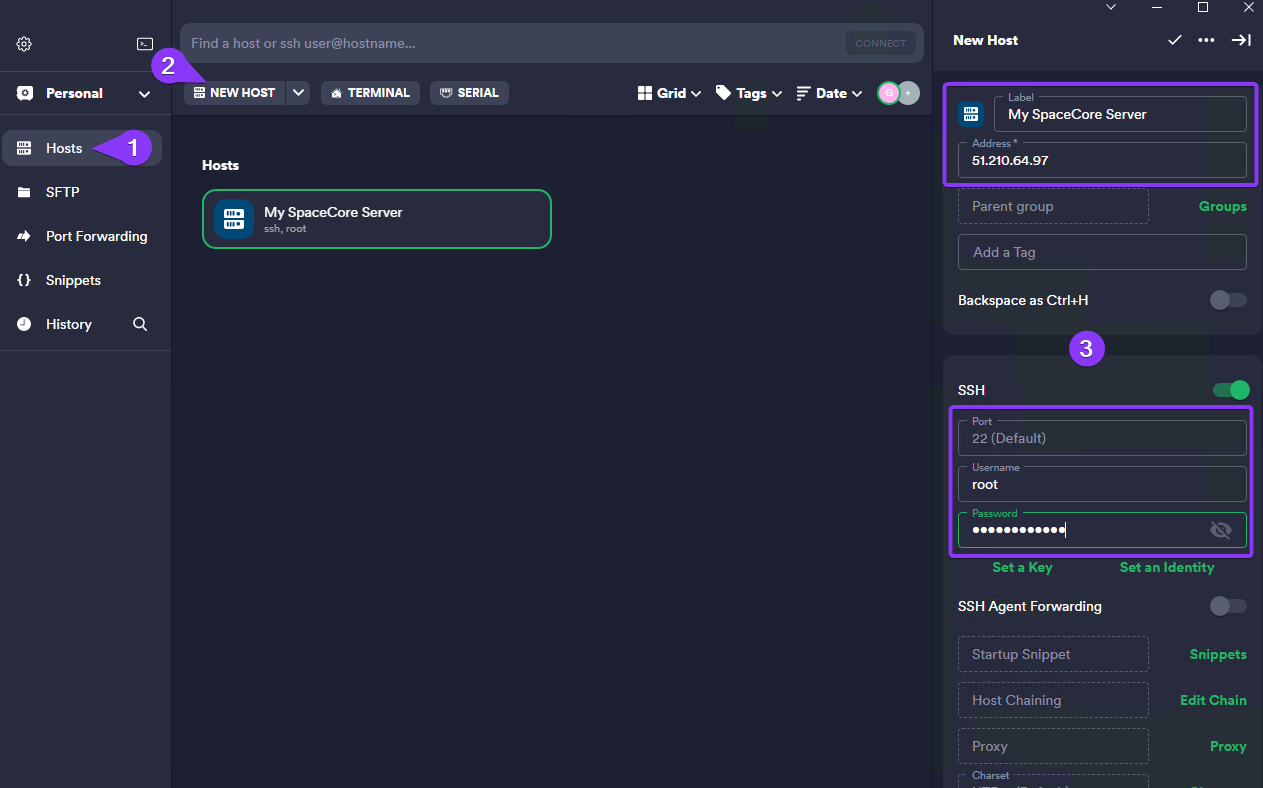
Go to the «Hosts» section, click «New Host», and enter the server data from the activation letter.

<figure><img src="https://287241268-files.gitbook.io/~/files/v0/b/gitbook-x-prod.appspot.com/o/spaces%2FyXvdNIxNLIOcexv7AfU2%2Fuploads%2FuQJUIRg4311Wnt73SZN2%2Fimage.png?alt=media&#x26;token=d06845c6-eb97-4d1f-bdd0-3a1568d17814" alt=""><figcaption></figcaption></figure>

Save the data and connect by double-clicking the saved host.

<figure><img src="https://287241268-files.gitbook.io/~/files/v0/b/gitbook-x-prod.appspot.com/o/spaces%2FyXvdNIxNLIOcexv7AfU2%2Fuploads%2F1MyZUVdxlmCHJ0ByW8n0%2F%D0%91%D0%B5%D0%B7%D1%8B%D0%BC%D1%8F%D0%BD%D0%BD%D1%8B%D0%B9.png?alt=media&#x26;token=d81c405d-ca58-4b2d-b62c-36e427f8dec8" alt=""><figcaption></figcaption></figure>

Add the new connection imprint using the «Add and continue» button.

<figure><img src="https://287241268-files.gitbook.io/~/files/v0/b/gitbook-x-prod.appspot.com/o/spaces%2FyXvdNIxNLIOcexv7AfU2%2Fuploads%2FwmaPhWUNj5x83TNdLRH7%2Fimage.png?alt=media&#x26;token=263d5916-147a-41fb-8e45-85c99e01ca97" alt=""><figcaption></figcaption></figure>

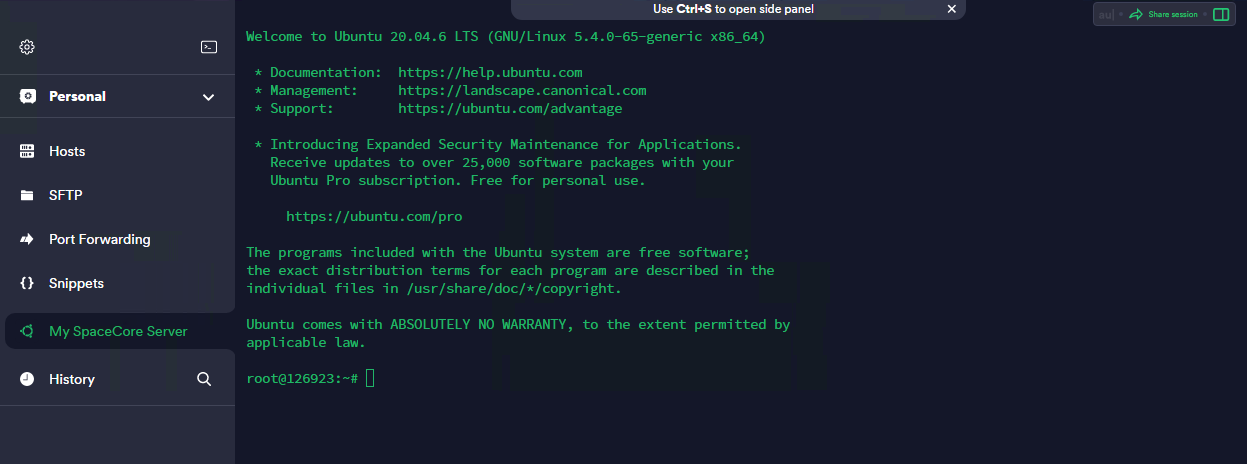
The connection is established.

<figure><img src="https://287241268-files.gitbook.io/~/files/v0/b/gitbook-x-prod.appspot.com/o/spaces%2FyXvdNIxNLIOcexv7AfU2%2Fuploads%2FgoA3hEsdMIVYDLb44XY1%2Fimage.png?alt=media&#x26;token=11f685a7-9de0-48be-bdec-61f84f91f795" alt=""><figcaption></figcaption></figure>

## Data transfer via sFTP

But that's not all! How do I transfer files from a computer to a remote server? To do this, we will use the **sFTP** protocol, which is also configured by default on all our **Linux OS** images.

The free programs **FileZilla, WinSCP** and others are suitable for this. But we use **Termius**, and here it is quite convenient to have a built-in **sFTP** client.

<figure><img src="https://287241268-files.gitbook.io/~/files/v0/b/gitbook-x-prod.appspot.com/o/spaces%2FyXvdNIxNLIOcexv7AfU2%2Fuploads%2Fivv7fOt6k0MLyVjCfIcv%2F%D0%91%D0%B5%D0%B7%D1%8B%D0%BC%D1%8F%D0%BD%D0%BD%D1%8B%D0%B9.png?alt=media&#x26;token=3319f739-64c8-4616-8a64-438a5575c8e3" alt=""><figcaption></figcaption></figure>

After connecting, you can transfer any files to your server by regular transfer.

<figure><img src="https://287241268-files.gitbook.io/~/files/v0/b/gitbook-x-prod.appspot.com/o/spaces%2FyXvdNIxNLIOcexv7AfU2%2Fuploads%2FkaZWCDrETu2rHTLBNfjX%2Fimage.png?alt=media&#x26;token=8c3b9783-dfa2-443d-affb-732944ed01e3" alt=""><figcaption></figcaption></figure>

By default, you are located in the root directory of your computer and server. To get to the right place, you can specify the path in the appropriate line. The screenshot shows the path to the Windows desktop. Depending on the OS, the path will be different.

<figure><img src="https://287241268-files.gitbook.io/~/files/v0/b/gitbook-x-prod.appspot.com/o/spaces%2FyXvdNIxNLIOcexv7AfU2%2Fuploads%2FVeVZJpS2DYEIgeeHNYSr%2Fimage.png?alt=media&#x26;token=a4f77417-d3ef-4c6e-8a6d-f207319554ea" alt=""><figcaption></figcaption></figure>
{% endtab %}

{% tab title="If the server is on Windows" %}
We will need any utility to connect via **RDP**. All the latest versions of **Windows** have special software built in for this purpose, and we will use it. In the system search, find and open the following application:

<figure><img src="https://287241268-files.gitbook.io/~/files/v0/b/gitbook-x-prod.appspot.com/o/spaces%2FyXvdNIxNLIOcexv7AfU2%2Fuploads%2F3tdJcZsW3Wkmy8rtBv2S%2Fimage.png?alt=media&#x26;token=4685d264-f768-4d9e-97c1-ca7f8f436f8a" alt=""><figcaption></figcaption></figure>

In the window that opens, enter the IP address of the server and use the button to connect.

<figure><img src="https://287241268-files.gitbook.io/~/files/v0/b/gitbook-x-prod.appspot.com/o/spaces%2FyXvdNIxNLIOcexv7AfU2%2Fuploads%2FGtnoDsg6tgvGNcHT8M6L%2Fimage.png?alt=media&#x26;token=6c836921-ba87-4317-ad4f-e2ce8d1bb905" alt=""><figcaption></figcaption></figure>

Next, enter the login and password to connect to the server; use the button «OK».

{% hint style="info" %}
Please note that standard logins may differ depending on the OS version. This is usually one of the following:

**Administrator**, Administrator - for **Windows Server Admin**

**Admin** - for Windows **Desktop**

Since we use **Windows Server 2019** in this instruction, we specify the **Administrator** login.
{% endhint %}

<figure><img src="https://287241268-files.gitbook.io/~/files/v0/b/gitbook-x-prod.appspot.com/o/spaces%2FyXvdNIxNLIOcexv7AfU2%2Fuploads%2FAV6GgbtPyKoJqhGqZU4A%2Fimage.png?alt=media&#x26;token=e9df07f8-6426-4923-b81a-efa86b9a91a8" alt=""><figcaption></figcaption></figure>

A window appears in which you want to authenticate the server certificate to which you are connecting. Check this box to ensure that such requests do not appear on subsequent connections to this server. Click «Yes».

<figure><img src="https://287241268-files.gitbook.io/~/files/v0/b/gitbook-x-prod.appspot.com/o/spaces%2FyXvdNIxNLIOcexv7AfU2%2Fuploads%2FS598sqs5FwI3PT2i2OE5%2Fimage.png?alt=media&#x26;token=462ee32f-aea8-4688-b7df-e3518fe989dd" alt=""><figcaption></figcaption></figure>

The connection is established.

<figure><img src="https://287241268-files.gitbook.io/~/files/v0/b/gitbook-x-prod.appspot.com/o/spaces%2FyXvdNIxNLIOcexv7AfU2%2Fuploads%2FGyTwYLWxJZHUGpPuo2g7%2Fimage.png?alt=media&#x26;token=f634727a-6183-4044-a28e-967d14adb46d" alt=""><figcaption></figcaption></figure>

## How do I transfer files to a remote server?

The utility we use has a built-in function of data transfer to the remote server. Open the same application. Next, expand the settings and go to the section «Local resources». In the category «Local devices and resources», click on the button «More».

<figure><img src="https://287241268-files.gitbook.io/~/files/v0/b/gitbook-x-prod.appspot.com/o/spaces%2FyXvdNIxNLIOcexv7AfU2%2Fuploads%2Ft9rzpnRGsW4jisyALua6%2FUntitled.png?alt=media&#x26;token=038ee9ab-12cd-4987-bc8a-422280128921" alt=""><figcaption></figcaption></figure>

In the opened window expand the list of «Disks» and select the drives of your computer, which will be connected to the remote server and save with the button «OK».

<figure><img src="https://287241268-files.gitbook.io/~/files/v0/b/gitbook-x-prod.appspot.com/o/spaces%2FyXvdNIxNLIOcexv7AfU2%2Fuploads%2FZye3XULqHvXVWnpan4on%2Fimage.png?alt=media&#x26;token=d84dc7e2-5613-4230-a01e-bbe0ce305227" alt=""><figcaption></figcaption></figure>

Connect to the server in the same way as it was indicated in the instructions above. Open Windows Explorer. Here you will see the connected remote disk.

<figure><img src="https://287241268-files.gitbook.io/~/files/v0/b/gitbook-x-prod.appspot.com/o/spaces%2FyXvdNIxNLIOcexv7AfU2%2Fuploads%2F6l1FP2y3y9H4xRLCHmSi%2Fimage.png?alt=media&#x26;token=553e10d0-56df-4543-9cf4-62d0e46f5f8c" alt=""><figcaption></figcaption></figure>

By going to the directory of the connected disk, you can find the desired folder from which you would like to download files.

<figure><img src="https://287241268-files.gitbook.io/~/files/v0/b/gitbook-x-prod.appspot.com/o/spaces%2FyXvdNIxNLIOcexv7AfU2%2Fuploads%2FqEwGIESmygT7jmOtNKeb%2Fimage.png?alt=media&#x26;token=8b736fd1-485c-44aa-a8c2-da719f244a43" alt=""><figcaption></figcaption></figure>

To transfer data from your computer to the server, it is enough to transfer the file from the folder of the remote disk to the server desktop. Please note that the file transfer rate depends on the server's network speed, as well as directly on your computer's network speed.
{% endtab %}
{% endtabs %}

## Reinstalling the OS

Use the data from your service activation letter to log in to the control panel. You can also access it via the «Go» button in your account.

<figure><img src="https://287241268-files.gitbook.io/~/files/v0/b/gitbook-x-prod.appspot.com/o/spaces%2FyXvdNIxNLIOcexv7AfU2%2Fuploads%2FHX4BwgDd79FatYejzoQ0%2Fimage.png?alt=media&#x26;token=312ae280-1375-460b-8f1f-5910e0182a97" alt=""><figcaption></figcaption></figure>

On the Control Panel page, expand your server tab and click «Options».

<figure><img src="https://287241268-files.gitbook.io/~/files/v0/b/gitbook-x-prod.appspot.com/o/spaces%2FyXvdNIxNLIOcexv7AfU2%2Fuploads%2FDlnSE97o0i5eUETMIf4S%2Fimage.png?alt=media&#x26;token=d9ba180b-03ee-484b-8517-583d009b38d1" alt=""><figcaption></figcaption></figure>

View real-time server information such as traffic, CPU load, RAM, and storage. Click «Reinstall» next to the current OS name.

<figure><img src="https://287241268-files.gitbook.io/~/files/v0/b/gitbook-x-prod.appspot.com/o/spaces%2FyXvdNIxNLIOcexv7AfU2%2Fuploads%2FAD6PoXZT9bJvuooq9MiR%2Fimage.png?alt=media&#x26;token=f3f5569c-2420-4f86-8660-c3a5b04e5e33" alt=""><figcaption></figcaption></figure>

In the window that opens, select the appropriate version of the OS. Optionally, you can select scripts for automatic software installation (identical option as when ordering a server). Below you can specify your password or generate automatically. By ticking the «Send email with password», after reinstalling the OS you will receive the specified password to your email.

Thus, we recommend that you either keep the password in a separate place, or get it to your email, because after clicking on the «Reset» button, the selected password will not be displayed anywhere in the control panel.

<figure><img src="https://287241268-files.gitbook.io/~/files/v0/b/gitbook-x-prod.appspot.com/o/spaces%2FyXvdNIxNLIOcexv7AfU2%2Fuploads%2FAXWVLiNKUXV2OwZ42D1F%2Fimage.png?alt=media&#x26;token=af3b8868-96d5-4ffc-b292-1fdeecc8eefc" alt=""><figcaption></figcaption></figure>

Wait for the OS to be reinstalled and you can get to work! The connection is carried out exactly as indicated in the instructions above.

{% hint style="info" %}
Reinstalling **Linux** distributions takes about **2-3 minutes**. Whereas installing **Windows** images can take up to **20 minutes**.
{% endhint %}

<figure><img src="https://287241268-files.gitbook.io/~/files/v0/b/gitbook-x-prod.appspot.com/o/spaces%2FyXvdNIxNLIOcexv7AfU2%2Fuploads%2FNP6LGaIbAAp2kVGGtY1x%2Fimage.png?alt=media&#x26;token=b7027956-15ef-4a6a-8602-0f0b1737b16e" alt=""><figcaption></figcaption></figure>