> For the complete documentation index, see [llms.txt](https://spacecore.gitbook.io/wiki/llms.txt). Markdown versions of documentation pages are available by appending `.md` to page URLs; this page is available as [Markdown](https://spacecore.gitbook.io/wiki/en/vpn-and-privacy/proxy-specific-domains-v2rayn.md).
# Proxy for Specific Websites (V2RayN)
{% hint style="danger" %}
### This content is outdated
**The knowledge base has moved →** [**https://wiki.spacecore.pro/**](https://wiki.spacecore.pro/)
This wiki is no longer updated. All current guides and articles are at the new address.
{% endhint %}
{% content-ref url="" %}
{% endcontent-ref %}
***
In this article, we will discuss how to set up a VPN connection so that it is used only for specific services. In other words, how to ensure that most websites and apps use a direct connection, while only designated resources route data through the VPN?
We’ll demonstrate this using the 3X-UI VPN panel. First of all, you need to install and configure it on a VDS server using [the following guide](https://wiki.spacecore.pro/en/vpn-and-privacy/3x-ui-installation). However, don’t rush to install the program on your computer or smartphone yet; simply copy the configuration for connection. It looks like a string starting with “vless\://”.
For Windows, install the V2RayN program. You can download it from [the official repository](https://github.com/2dust/v2rayN/releases). Choose the “With-Core” version.
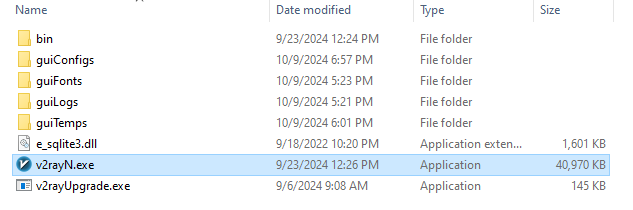
Download and unpack the archive on your desktop. You will see the following files. Run v2rayN.exe
In the program window that opens, click the Servers button. Then click “Importing Share Links…”. The config address, starting with “vless\://”, should be copied to the clipboard.
The server is now added. Click Settings -> Routing Setting.
Select Advanced Function -> Add.
Enter any name in the “Remarks” field.
Right-click in the black square area. A menu will appear, select “Add Rule”.
In the window for creating a new rule, choose the “Proxy” type. In the “Domain” field, enter all the domains you want to route through the VPN.
For example, to have Discord use the VPN, you need to list [the following domains](https://github.com/v2fly/domain-list-community/blob/master/data/discord). For YouTube, use [this link](https://github.com/v2fly/domain-list-community/blob/master/data/youtube). As an example, we will use the service whatismyip.com to check that our IP address indeed changes. Click Confirm to save.
Next, create another rule in the same way. This time, select the proxy type “Direct”. In the domain block, enter the following expression `regexp:\.*$`.
Save.
The first rule we created will send protected VPN traffic only to the specified domains. In our case, to whatismyip.com. Thanks to the second rule, all other websites will receive our “clean” traffic without using the VPN. Save everything.
For the “Routing” parameter, select the one you created following the above instructions. Set the “System proxy” parameter to “Set system proxy,” then click “Enable Tun” to start the tunnel.
Check the result. On one site, our original address is displayed.
Meanwhile, on whatismyip.com, which we added to the proxy list, the VPN address is displayed.
This way, you can proxy only the necessary services, while using the rest of the internet without network restrictions.