> For the complete documentation index, see [llms.txt](https://spacecore.gitbook.io/wiki/llms.txt). Markdown versions of documentation pages are available by appending `.md` to page URLs; this page is available as [Markdown](https://spacecore.gitbook.io/wiki/en/vpn-and-privacy/marzban-installation.md).
# Installing Marzban
{% hint style="danger" %}
### This content is outdated
**The knowledge base has moved →** [**https://wiki.spacecore.pro/**](https://wiki.spacecore.pro/)
This wiki is no longer updated. All current guides and articles are at the new address.
{% endhint %}
{% content-ref url="" %}
{% endcontent-ref %}
***
Marzban is a web panel designed for managing proxy servers and supporting protocols such as VMess, VLESS, Trojan, and ShadowSocks. It allows for efficient user management, configuration of various proxy connection parameters, including traffic and expiration limits, and IP address access control. The panel also supports automatic SSL certificate configuration and integration with Telegram for convenient notifications and management. Marzban is ideal for both experienced administrators and those just starting with proxy servers, offering an intuitive interface and flexible settings.
## Supported protocols
{% tabs %}
{% tab title="VMess" %}
VMess is a proprietary protocol for communication in the V2Ray project, specifically developed to bypass network restrictions and ensure privacy. This protocol supports both TCP and UDP traffic, making it versatile. A key feature of VMess is that it uses encryption and obfuscation to hide data transmitted between the client and server, making traffic detection by ISPs significantly more difficult.
{% endtab %}
{% tab title="VLESS" %}
VLESS is an alternative version of the VMess protocol, created to simplify and improve efficiency. Unlike VMess, VLESS does not have built-in encryption and authentication, reducing server load and increasing performance. Encryption and obfuscation in VLESS are implemented at a higher level, allowing users to configure their connections more flexibly. VLESS has become popular due to its lightweight nature and ability to handle a large number of concurrent connections, which is especially important for large deployments and high-traffic networks.
{% endtab %}
{% tab title="Trojan" %}
Trojan is a protocol that mimics the operation of a regular HTTPS connection to conceal the use of a proxy server. Since Trojan uses the standard port 443 and supports TLS, its traffic is virtually indistinguishable from regular web traffic running over HTTPS. This makes Trojan an excellent choice for bypassing DPI (Deep Packet Inspection) and other network monitoring technologies.
{% endtab %}
{% tab title="ShadowSocks" %}
ShadowSocks is a lightweight, high-performance proxy protocol initially developed to circumvent internet censorship in China. It uses data encryption to hide it from providers and firewalls. ShadowSocks is popular due to its speed, ease of setup, and high level of privacy. It is compatible with most modern devices and operating systems, including Windows, macOS, Linux, iOS, and Android. Due to its efficiency and ease of use, ShadowSocks has become one of the most popular tools for bypassing internet censorship worldwide.
{% endtab %}
{% endtabs %}
{% hint style="info" %}
A server with the following minimum configuration is suitable for installing the panel:
1 vCPU / 2 GB RAM / 10 GB SSD / 100 Mbps
[Order a suitable server.](https://billing.spacecore.pro/billmgr?startpage=v2.vds.order.pricelist)
Ubuntu 20.04 OS will be used in the course of the article.
{% endhint %}
## Advantages
* Intuitive web interface: Marzban offers a simple and user-friendly web interface that allows easy management of proxy servers, creation and configuration of user accounts, and control of traffic and resources without requiring deep technical knowledge.
* REST API for flexible management: All Marzban functionality is available through a REST API, allowing it to be integrated with other systems and automate proxy server management processes at the software level.
* Infrastructure scalability: Marzban supports integration with multiple nodes, allowing load distribution between servers and effective infrastructure scaling as the number of users or traffic volume grows.
* Multi-protocol support for users: Each user can use multiple protocols simultaneously, providing flexibility and compatibility with various clients.
* Support for multiple users on a single connection: Marzban allows the creation of multiple user accounts that can use a single inbound connection, optimizing server resource usage.
* Hosting multiple inbound connections on a single port: The platform supports hosting multiple inbound connections on a single port, with fallback mechanisms configurable, enhancing connection reliability.
* Traffic and expiration limits: The panel can set traffic and expiration limits for user accounts, helping to manage server resources effectively.
* Server resource monitoring: Built-in monitoring tools allow real-time tracking of server status and traffic usage, enabling quick response to load changes.
* Support for modern security technologies: The panel is integrated with TLS and new technologies like REALITY, ensuring connection security and resilience.
* Built-in Telegram bot: For convenient management, a built-in Telegram bot is available, allowing notifications and commands to be sent directly through the messenger.
* Command Line Interface (CLI): Marzban also supports management via the command line, which is especially useful for experienced users who prefer a text interface.
## Installation
Use the command to install the Marzban panel:
```
sudo bash -c "$(curl -sL https://github.com/Gozargah/Marzban-scripts/raw/master/marzban.sh)" @ install
```
After installation, you can monitor the logs. Stop them by pressing **Ctrl+C**. All Marzban files will be saved in the `/opt/marzban` directory, and the main configuration file can be found at `/opt/marzban/.env`
To create an administrator account, enter the command:
```
sudo marzban cli admin create --sudo
```
Enter a login for the new account, password, and repeat the password. The system will then ask for your **Telegram ID** and **Discord Webhook**; these are optional settings that can be skipped by pressing **Enter**. Afterward, you will see a message confirming the successful creation of the administrator account.
Go to `http://SERVER_IP:8000/dashboard/` (replace SERVER\_IP with your server’s IP address). Enter the credentials of the previously created user to log in.
On the main page of the control panel, use the “Create User” button to create a new user.
If necessary, you can set a daily traffic limit (in GB) and specify the expiration date for this user. By default, all protocols are selected, but we will leave only **VLESS** as the most convenient and reliable. Click “Create User.”
## Connecting to proxy
### PC
The user has been successfully created. Next, copy the configuration using the button highlighted in the screenshot.
For connecting with Windows / macOS / Linux / Android, we recommend using the Hiddify program. [Download it for any of the systems](https://github.com/hiddify/hiddify-next/releases).
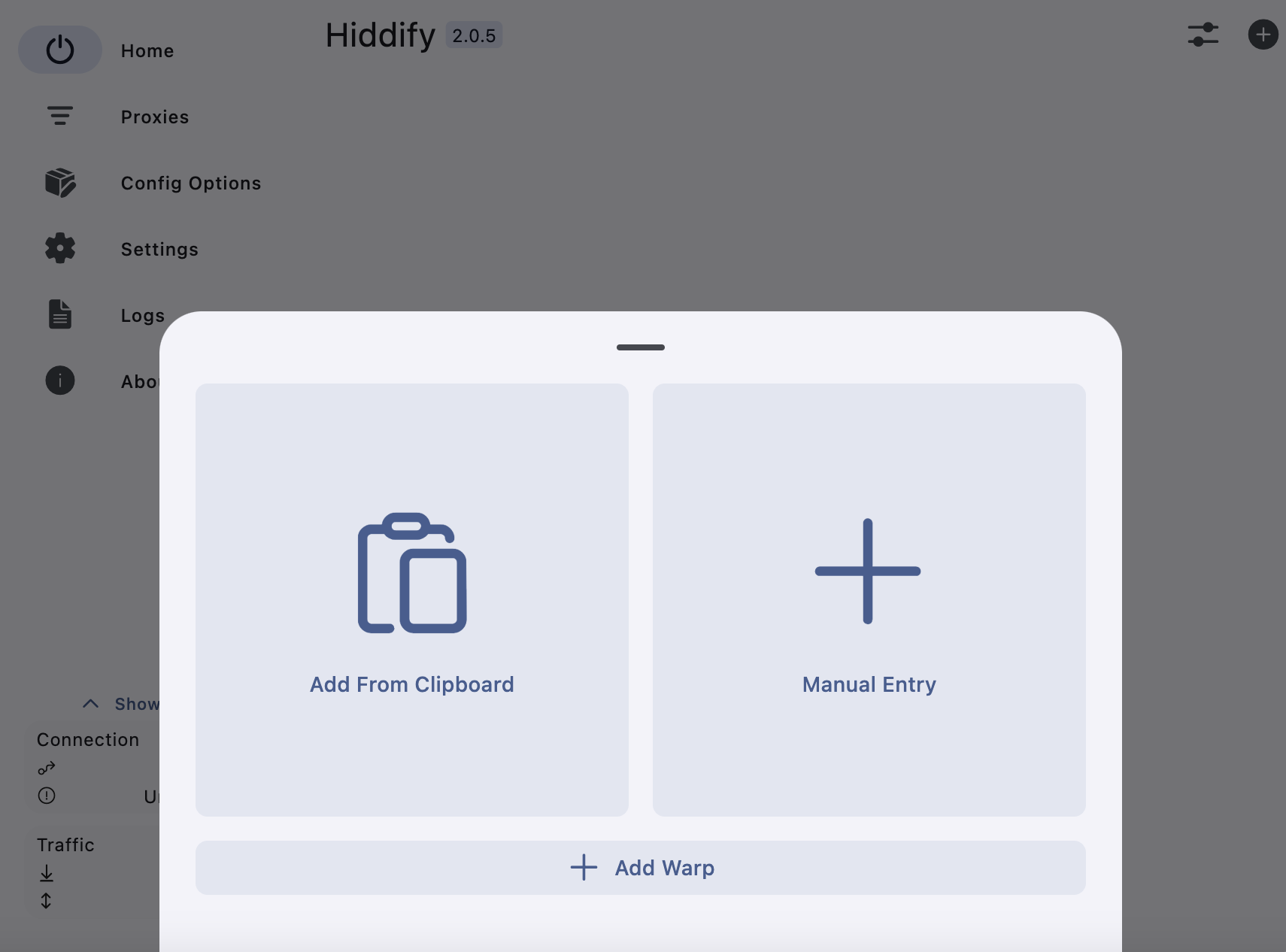
After installing and launching the program, use the “New Profile” button and click “Add From Clipboard” to paste the authorization code from the clipboard. Before doing so, make sure you copied it as shown above.
After a successful connection to the network, you will be able to see user activity and traffic consumption in the control panel.
### Mobile app
As previously mentioned, for Android, you can use the [Hiddify app](https://github.com/hiddify/hiddify-next/releases). However, it is not available in the App Store. For iPhone, we recommend installing [V2Box](https://apps.apple.com/ru/app/v2box-v2ray-client/id6446814690?l=en-GB).
The setup is just as simple. Just go to the **Configs section** and scan the QR code. The configuration will then be added to the app.
Connection established successfully! You can now use the network.