> For the complete documentation index, see [llms.txt](https://spacecore.gitbook.io/wiki/llms.txt). Markdown versions of documentation pages are available by appending `.md` to page URLs; this page is available as [Markdown](https://spacecore.gitbook.io/wiki/en/vpn-and-privacy/installation-of-torrserver.md).
# Installing TorrServer
{% hint style="danger" %}
### This content is outdated
**The knowledge base has moved →** [**https://wiki.spacecore.pro/**](https://wiki.spacecore.pro/)
This wiki is no longer updated. All current guides and articles are at the new address.
{% endhint %}
{% content-ref url="" %}
{% endcontent-ref %}
***
TorrServer is an efficient and convenient solution for streaming multimedia content through torrenting. Being easy to set up and use, TorrServer is perfect for both experienced torrent users and newcomers who want to simplify torrent browsing as much as possible.
{% hint style="success" %}
This instruction uses Ubuntu 20.04 The script works on all current versions of Ubuntu, Debian, AlmaLinux, Rocky Linux, CentOS and Fedora.
{% endhint %}
## Connect to the server
Connect to your server. If necessary, you can use our[ detailed instructions](https://wiki.spacecore.pro/vds-dedicated/how-to-use-vps-vds#connect) to perform this operation.
## Installing TorrServer
Use the command to automatically start the installer.
```
apt-get update; rm torrserver-install.sh; wget https://mirror.spacecore.info/scripts/torrserver-install.sh && bash torrserver-install.sh
```
### After the script is run
After the download is complete, specify the login and password that will be used to enter the control panel.
{% hint style="info" %}
Sending is done by the «**Enter**» button.
{% endhint %}
Then wait for the full installation of TorrServer. This will be evidenced by the message with a link to the website.
Go to the specified address and perform authorization.
Then you will be in the **TorrServer** control panel, where you can change the language at the top right, and when you click the middle button you will see the torrent add menu. Let’s try adding one.
In the opened window you can specify a **magnet link** or download a **torrent file**. Next, use the button to add.
The torrent was successfully added. Now you can download the file format **. m3u** to view streaming movies, for example, through [VLC Player](https://www.videolan.org/vlc/).
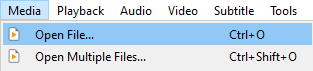
To do this in **VLC Player** you need to select the tab «**Media**» -> «**Open File**»
Enjoy the classic movies!
## Uninstalling TorrServer
Use the following command to delete.
{% hint style="danger" %}
The removal process is irreversible.
{% endhint %}
```
rm torrserver-uninstall.sh; wget https://mirror.spacecore.info/scripts/torrserver-uninstall.sh && bash torrserver-uninstall.sh
```