> For the complete documentation index, see [llms.txt](https://spacecore.gitbook.io/wiki/llms.txt). Markdown versions of documentation pages are available by appending `.md` to page URLs; this page is available as [Markdown](https://spacecore.gitbook.io/wiki/en/personal-account/finance-section.md).
# «Finance» section
{% hint style="danger" %}
### This content is outdated
**The knowledge base has moved →** [**https://wiki.spacecore.pro/**](https://wiki.spacecore.pro/)
This wiki is no longer updated. All current guides and articles are at the new address.
{% endhint %}
{% content-ref url="" %}
{% endcontent-ref %}
***
## Payments
On this page, you can view a complete list of your payments and their statuses. Use the "Create" button to generate a new payment for the required amount. By selecting an unpaid invoice and clicking on the «Pay» button, you can proceed to make payment for an existing payment.
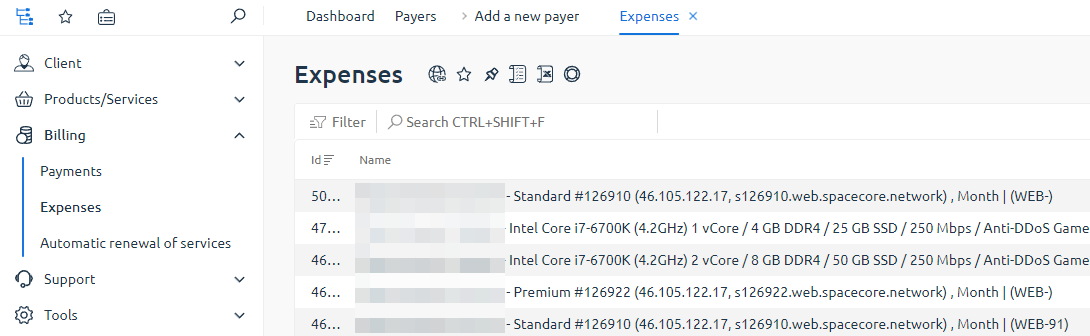
## Expenses
Here, you can track all expenses associated with your account.
## Auto-Renewal of Services
This section provides control over all services connected to auto-renewal.
## Settings
{% hint style="danger" %}
Please note that for the auto-renewal to function correctly, the necessary funds for renewal should be available on your balance at least 24 hours before the service expiration date. If the balance is topped up late, we strongly recommend manually renewing the service on your service page using the "Renew" button. This way, you can avoid any unwanted interruption of your services.
{% endhint %}
{% tabs %}
{% tab title="If auto-renewal is enabled" %}
If your service is already connected to auto-renewal, use the «Change» button on the «Auto-Renewal of Services» page to modify the settings.
On the page that opens, you can disable auto-renewal or change its term.
{% endtab %}
{% tab title="If disabled" %}
If you did not activate auto-renewal when ordering the service, you can do so later. Navigate to the «Products/Services» section and select the service page where you would like to enable auto-renewal. For instance, let's go to the «Web Hosting» page, then enter the settings using the «Change» button.
If you wish to set up auto-renewal on a virtual server (VPS/VDS), you should directly go to the «Virtual Servers» page.
Here, the first item you will see is the auto-renewal settings tab. Select the desired term.
Save the chosen settings.
When auto-renewal is active, a clock icon is displayed to the left of the status of each service.
{% endtab %}
{% endtabs %}