> For the complete documentation index, see [llms.txt](https://spacecore.gitbook.io/wiki/llms.txt). Markdown versions of documentation pages are available by appending `.md` to page URLs; this page is available as [Markdown](https://spacecore.gitbook.io/wiki/en/os-and-software/linux-password-recovery.md).
# Linux Password Recovery
{% hint style="danger" %}
### This content is outdated
**The knowledge base has moved →** [**https://wiki.spacecore.pro/**](https://wiki.spacecore.pro/)
This wiki is no longer updated. All current guides and articles are at the new address.
{% endhint %}
{% content-ref url="" %}
{% endcontent-ref %}
***
Log in to [VMmanager](https://spacecore.cloud/) and select your virtual server.
Go to the «Menu» section and select «Recovery mode».
Agree to connect the SystemRescueCD image and reboot.
After using the button, the process of loading the server in recovery mode began.
Great, the server’s ready.
Connect to the server via VNC (SSH and sFTP are unavailable).
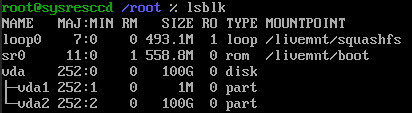
Use the command «`lsblk`» to view all existing server drives.
We need to mount the main disk partition vda2, we use the command
```
mount /dev/vda2 /mnt
```
Done! Next, let’s specify a new root directory for further work.
After execution, you can only use the last command to change the **root** password.
We ask for a new password and repeat it. We see a message that the user’s password has been successfully changed.
Exit recovery mode and reconnect with the new password.