> For the complete documentation index, see [llms.txt](https://spacecore.gitbook.io/wiki/llms.txt). Markdown versions of documentation pages are available by appending `.md` to page URLs; this page is available as [Markdown](https://spacecore.gitbook.io/wiki/en/os-and-software/deploying-mikrotik-routeros-on-vds.md).
# Deploying MikroTik RouterOS on VDS
{% hint style="danger" %}
### This content is outdated
**The knowledge base has moved →** [**https://wiki.spacecore.pro/**](https://wiki.spacecore.pro/)
This wiki is no longer updated. All current guides and articles are at the new address.
{% endhint %}
{% content-ref url="" %}
{% endcontent-ref %}
***
## Introduction
MikroTik RouterOS is a universal operating system that turns standard hardware into a full—fledged router. Such a solution is widely used for organizing corporate networks and even at home due to its flexibility and accessibility.
{% hint style="success" %}
This manual uses Ubuntu 20.04 OS
{% endhint %}
{% hint style="info" %}
Recommended technical requirements.
CPU: 1 core
RAM: 512MB
Storage capacity: 1 GB
This information is for reference and does not require special attention, since any available data plan is suitable for using MikroTik RouterOS on our virtual servers.
{% endhint %}
## Connecting to the server
Connect to your server. If necessary, you can use our [detailed instructions](https://wiki.spacecore.pro/vds-dedicated/how-to-use-vps-vds#connect) for performing this operation.
## Installing RouterOS
Update the list of packages and repositories of the system.
```
apt-get update
```
Check the availability or install the unzip required to unzip the archive.
```
apt-get install unzip -y
```
To download the current version of the software, go to the [Mikrotik website](https://mikrotik.com/download), where you need to open the "Cloud Hosted Router" section and select the current stable version of the "Raw disk image". Next, copy the link of this button.
Upload the selected image using wget or cURL.
```
wget https://download.mikrotik.com/routeros/7.12/chr-7.12.img.zip
```
After the download is complete, unzip the archive.
```
unzip chr-*.img.zip
```
The next step is to write the system image to the virtual disk of the server.
{% hint style="info" %}
«**of=/dev/vda**» means the path to your server's drive. On all VDS/VPS purchased on SpaceCore, the value does not need to be changed, since it remains the original by default.
If you purchased a server from another hosting provider, you can use the `lsblk` command to check the partition names.
{% endhint %}
```
rm chr-*.img.zip; for file in chr-*.img; do dd if="$file" of=/dev/vda bs=4M oflag=sync; done
```
Initialize the RouterOS system startup. Enter the following commands one at a time.
```
echo 1 > /proc/sys/kernel/sysrq
```
```
echo b > /proc/sysrq-trigger
```
## Customization
To connect to the server, you should now use VNC, which you can access in the [control panel](https://spacecore.cloud/). To do this, click on the link and log in using the data sent in the first server activation email.
{% hint style="warning" %}
Please note that the login details for the [personal account](https://billing.spacecore.pro/) and the [control panel](https://spacecore.cloud/) are not identical.
{% endhint %}
As a simpler method, you can use the button to go to the control panel in your [personal account ](https://billing.spacecore.pro/)on the virtual servers page. Authorization will happen automatically.
Directly in the control panel go to the page of the used server and click on the button «VNC» in the upper right corner.
In the opened window for authorization, enter the login «admin» and skip the password input by «Enter».
Next, if necessary, read the software license, indicating «y» as the answer to the first question. In our case we specify «n» due to lack of familiarization.
Next, set a new password that will be used to access the system. ❗️Pay special attention to this point, as it is the key to compliance with security measures.
Now go back to the [control panel](https://spacecore.cloud/) and go to the IP address configuration section. From here you need to write a couple of values, namely IP address and gateway (they are highlighted in the screenshot below).
After that, edit the corresponding values and enter commands in VNC in turn.
😨 Unfortunately, CTRL+V will not work.
```
ip address add address=🚀IP/32 network=🚀Gateway interface=ether1
```
```
ip route add dst-address=0.0.0.0/0 gateway=🚀Gateway
```
{% hint style="info" %}
Where "🚀IP" is the address of your server.
"🚀Gateway" — gateway.
{% endhint %}
{% hint style="danger" %}
The Emoji commands entered must not be.
{% endhint %}
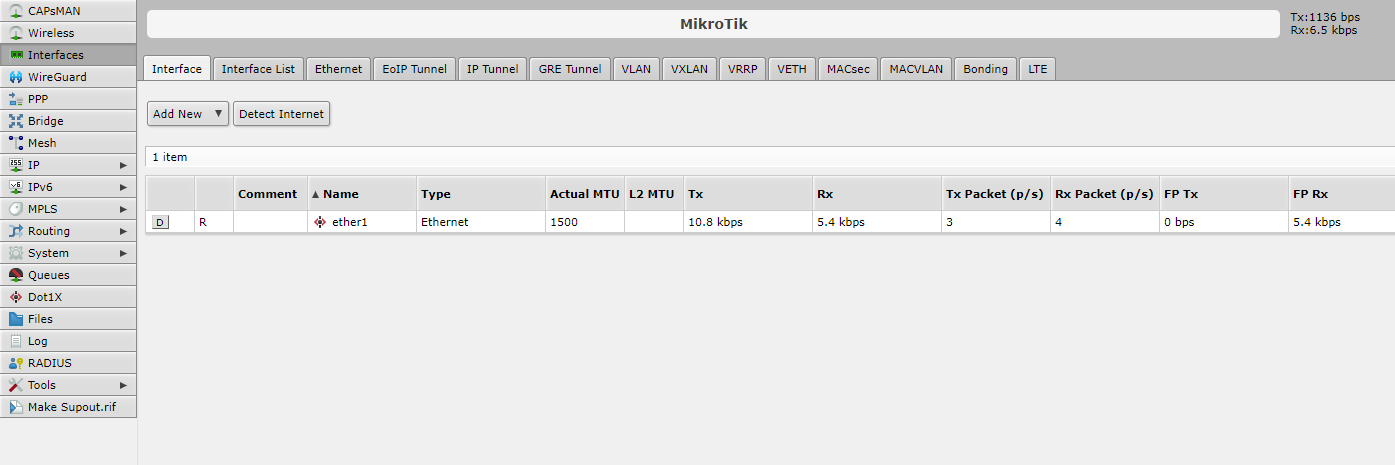
If all operations are performed correctly, you can now go to the MikroTik RouterOS control panel website. To do this, simply enter the address of your server in the address bar of the browser, after which you will open the authorization page, which you need to specify the same login «admin» and password that you set during the configuration via VNC.
Installation is complete! Now you can start configuring the network interfaces, IP addresses, routing and other features available in MikroTik RouterOS to fully configure your server for use in the network infrastructure.