> For the complete documentation index, see [llms.txt](https://spacecore.gitbook.io/wiki/llms.txt). Markdown versions of documentation pages are available by appending `.md` to page URLs; this page is available as [Markdown](https://spacecore.gitbook.io/wiki/en/os-and-software/connecting-via-ssh-keys.md).
# Connecting via SSH keys
{% hint style="danger" %}
### This content is outdated
**The knowledge base has moved →** [**https://wiki.spacecore.pro/**](https://wiki.spacecore.pro/)
This wiki is no longer updated. All current guides and articles are at the new address.
{% endhint %}
{% content-ref url="" %}
{% endcontent-ref %}
***
Are you concerned about the security of your server? You need to activate the authorization method via SSH key and now more!
## Windows installation
Launch the **PuTTYgen** app, or you can download the portable version for its system clearances by one of the links:
{% hint style="info" %}
**32-bit** version: [download](https://mirror.spacecore.info/uploads/puttygen\(32bit\).exe)
**64-bit** version: [download](https://mirror.spacecore.info/uploads/puttygen\(64bit\).exe)
{% endhint %}
At startup we have this window:
Press the **Generate** button and for some time lead to random places with the mouse pointer, it is necessary for the unique generation of the key.
After the action we see the following data:
The **Public key for pasting** line contains prepared text that we need to use later.
At the request of the **Key passphrase** You can specify additional code for your key, which will need to be entered at each connection to the server, we will specify the word spacecore. Then you need to click the Save **public key** button to additionally save the **public key** that was specified above. And press Save private key and save the **private key** file that we need to connect to the server.
{% hint style="warning" %}
The name of the key files can be any, it does not affect anything.
{% endhint %}
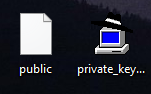
We saved and received 2 files:
## There are two ways to fix the SSH key on the server:
### Using nano utilities
After connecting to the server we need to use the command
```
nano /root/.ssh/authorized_keys
```
We have entered the editing panel of the **authorized\_keys** file, which is responsible for configuring the **SSH keys**.
At the moment the file is empty, we need to fully copy all the text from the window to **PuTTYgen:**
Then insert it into the editable PKM file (right mouse button).
Press the key combination **Ctrl + X**
Confirm file saving by entering the letter **Y.**
The **SSH key** was successfully linked to our server.
### Data transmission via **sFTP**
Connect to our server and see on the main page the list of files, go to the directory . **ssh**
Here we see the file **authorized\_keys**, currently it is empty, its size is 0 bytes.
Press **PKM** and open file
Here we insert the same **PuTTYgen** public key.
Save the changes and send the file to the server.
Done, **SSH key** set!
## Connecting via SSH key
When we open **PuTTY** program we enter the standard interface, we need to enter the **IP address** of the server.
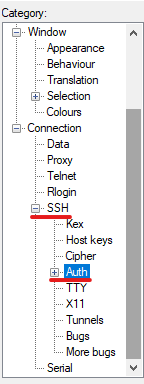
In the left menu, open the **SSH** tab and move to **Auth**.
Here we need to select the location of the **private key** file (note, not public!) with the extension **. ppk**
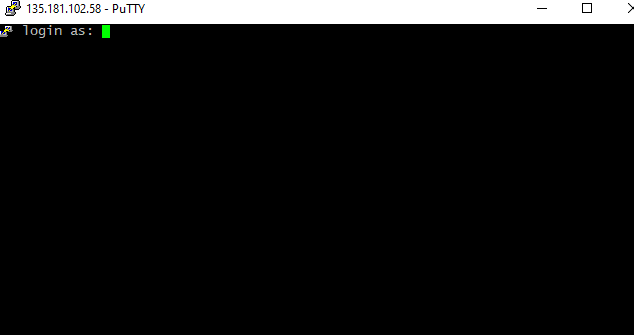
After adding the key, press the **Open** button. The standard **login** interface appears, fill in.
After entering the username, we ask for the **Passphrase-code** (when generating the key we specified **spacecore**), enter.
Congratulations, **SSH key** authentication was successful!
## How do I save server data for quick login?
You need to enter the IP address of the server as well as bind your **private SSH key**. Then we specify the name of the session to be saved.
Session remained.
***
You can also specify a *user name* in front of the **IP address** to speed up the login process, like this:
{% hint style="warning" %}
**username\@IP-address**
{% endhint %}
Keep. Now, double-clicking the saved session will open a window in which we should enter the **private key** code (only if you have specified it. In the absence of the code, the connection will be instantly without entering additional data).
We introduce it. That's it, we're connected!