> For the complete documentation index, see [llms.txt](https://spacecore.gitbook.io/wiki/llms.txt). Markdown versions of documentation pages are available by appending `.md` to page URLs; this page is available as [Markdown](https://spacecore.gitbook.io/wiki/en/network-and-security-configuration/prohibiting-interaction-with-private-networks.md).
# No interaction with private networks
{% hint style="danger" %}
### This content is outdated
**The knowledge base has moved →** [**https://wiki.spacecore.pro/**](https://wiki.spacecore.pro/)
This wiki is no longer updated. All current guides and articles are at the new address.
{% endhint %}
{% content-ref url="" %}
{% endcontent-ref %}
***
There may be problems when suddenly there are complaints from the data center about scanning private networks, although you did not do it on purpose. We can block all private networks to solve this problem.
## Ufw installation
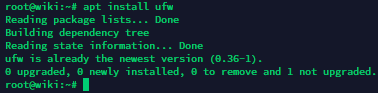
First, you should check for **ufw** on your server.
```
sudo apt install ufw
```
Next, before enabling it, we should specify important settings to avoid losing access to services. Allow **SSH, HTTP, HTTPS** service ports.
```
sudo ufw allow 22
sudo ufw allow 80
sudo ufw allow 443
```
That’s it. Let’s turn on our firewall.
```
sudo ufw enable
```
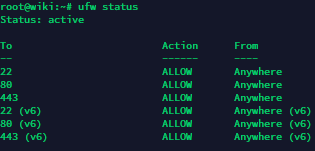
Next we can check the status of the firewall team
```
sudo ufw status
```
## Private network lock
Everything is fine! Now let’s move to blocking private networks.
{% hint style="info" %}
These include:
* 10.0.0.0/8
* 172.16.0.0/12
* 192.168.0.0/16
* 100.64.0.0/10
{% endhint %}
Block them quite simply, we use the commands:
```
sudo ufw deny out from any to 10.0.0.0/8
sudo ufw deny out from any to 172.16.0.0/12
sudo ufw deny out from any to 192.168.0.0/16
sudo ufw deny out from any to 100.64.0.0/10
sudo ufw deny out from any to 198.18.0.0/15
sudo ufw deny out from any to 169.254.0.0/16
```
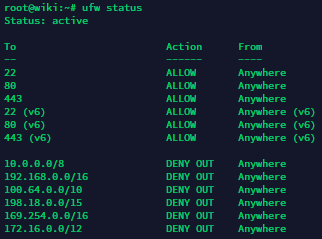
After addition, we can check the status of the rules again:
```
sudo ufw status
# Либо при помощи iptables:
iptables-save
```
Now, if we try to access the private network address, we get an error. For example, through the command `ping`:
```
ping 198.18.22.62
```
You're done!
## Unlock networks (if necessary)
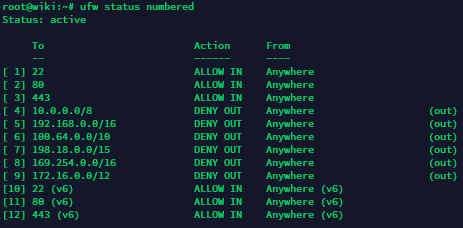
Check the list of current **ufw** rules together with their numbering:
```
sudo ufw status numbered
```
And now we can delete the necessary rule by command
```
sudo ufw delete <номер правила>
```
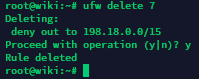
For example, delete rule 7:
```
sudo ufw delete 7
```
Now we have no restrictions when trying to re-address 198.18.22.62:
Thank you for familiarization! Now you know how to close (and open) access to your server to private networks using **ufw**.