> For the complete documentation index, see [llms.txt](https://spacecore.gitbook.io/wiki/llms.txt). Markdown versions of documentation pages are available by appending `.md` to page URLs; this page is available as [Markdown](https://spacecore.gitbook.io/wiki/en/network-and-security-configuration/how-to-connect-domain.md).
# How do I direct my domain to an IP address?
{% hint style="danger" %}
### This content is outdated
**The knowledge base has moved →** [**https://wiki.spacecore.pro/**](https://wiki.spacecore.pro/)
This wiki is no longer updated. All current guides and articles are at the new address.
{% endhint %}
{% content-ref url="" %}
{% endcontent-ref %}
***
## Activating DNS Hosting
In the main category we find the **DNS hosting** section.
Here we need to order a free hosting service, which will be necessary in working with the Domain name.
Set the payment period to **1 yea**r and click **Order**.
Add product to cart. Click **Activate**.
Our order is being processed and will be available in a few seconds.
The **DNS hosting** service has been activated!
## Setup process
The data to enter the panel you can find on el. the mail that is linked to the **Billing System** account, or select the service and click the **Instruction** button.
In the window that opens, we see information about the service, as well as data for entering the **control panel**.
Go to the [link ](https://ns1.spacecore.pro:1500/dnsmgr)and login.
We’re in the control panel. Click the New **Domain button**.
Specify the Domain name itself, if you wish, you can specify your mail in the Administrator’s Email field (it is necessary for the Hosting Provider to contact you directly in case of questions) and click **OK**.
Our domain was added to the panel.
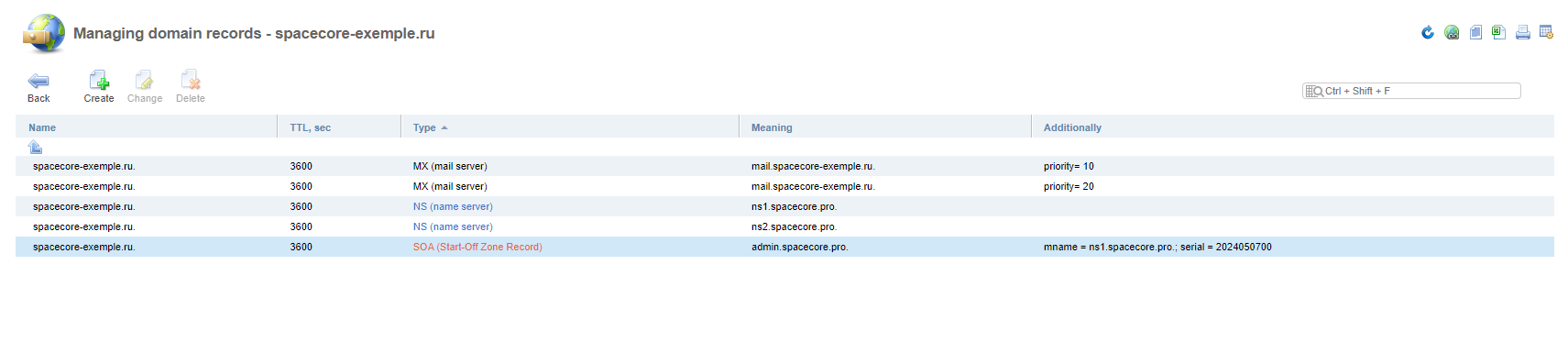
Click on the domain line and then click on the **Records** button.
All standard domain name records are visible here. Click the **Create** button.
In the **Name** line, enter the symbol «**@** » to apply the entry to the **address**, **not the subdomain**. Specify the **IP address** to which our domain should refer and click **OK**.
{% hint style="info" %}
Record Types:\
**A** — specifies the address the domain will reference.\
**АААА** — is also used to link to a domain, but under **IPv6-адреса**.\
**NS** — to specify the DNS server that will use the domain(**ns1.spacecore.pro ns2.spacecore.pro**).\
**MX** — the record specifies the mail server for the domain name.\
**TXT** — attaches text information to the domain, usually used to confirm domain name ownership.\
**SRV** —most often used to specify data under special protocols (for example: **SIP, XMPP**).\
**CNAME** — the record creates aliases for the domain.\
**DNAME** —is used to create aliases, but only subdomain, without affecting the primary domain name.\
**PTR** — links the IP address to the domain name, usually required for mail services.\
**CAA** —specifies the certified certification authorities.\
**DS** — entry specifies the key to use**DNSSEC**.\
**TLSA** — is used to **TLS-аутентификации**.
{% endhint %}
Done, our **A-record** successfully added.
Now we just have to wait.
{% hint style="info" %}
Note that if you rent your server from us, the **DNS** update will take a few minutes.
In case of renting hardware (not domain) from another provider, the upgrade can take up to **48 hours**.
{% endhint %}
## Result
After a short period of time (**3-4 minutes**) our Domain successfully directs the user to the required site!