> For the complete documentation index, see [llms.txt](https://spacecore.gitbook.io/wiki/llms.txt). Markdown versions of documentation pages are available by appending `.md` to page URLs; this page is available as [Markdown](https://spacecore.gitbook.io/wiki/en/network-and-security-configuration/how-to-buy-a-domain.md).
# How do I buy a domain name?
{% hint style="danger" %}
### This content is outdated
**The knowledge base has moved →** [**https://wiki.spacecore.pro/**](https://wiki.spacecore.pro/)
This wiki is no longer updated. All current guides and articles are at the new address.
{% endhint %}
{% content-ref url="" %}
{% endcontent-ref %}
***
With us you can buy a beautiful domain name for your site or project. In this tutorial we will give you more details.
From the beginning you need to register in Billing, [more here](https://wiki.spacecore.pro/main-information/reg-on-billing-system).
After authorization, you can see a panel on the left of your account, click on **Products/Services**, expand the tab and select the **Domains** section.
We enter the tab for working with our Domain names.
Click on the **Registration** button to start the process of registering our Domain.
In the text box we need to specify the Domain name we are interested in to verify the possibility of registration, as well as choose the appropriate Domain Zone (for example, let’s take .ru). Let’s press Check.
On the next page we see the available versions of our Domain name, check and click **Register**.
Next, we are asked to fill out all the information about the buyer (that is, about you).
{% hint style="warning" %}
The asterisk symbol (\*) indicates the required fields.
{% endhint %}
{% hint style="warning" %}
You should pay attention to the lines to fill in passport data and address. This information should be correct, otherwise you will not be able to prove legal ownership if you have problems with your domain name.
{% endhint %}
After filling in all the information press **Next**.
Now, to delegate the domain, we are asked to enter **Ns-addresses.**
{% hint style="info" %}
Use:
**ns1.spacecore.pro**\
**ns2.spacecore.pro**
{% endhint %}
Press the Next button.
Check the Data Protection check box, check the details of our order and click on the In Cart button.
We were redirected to the shopping cart section, click **Pay**.
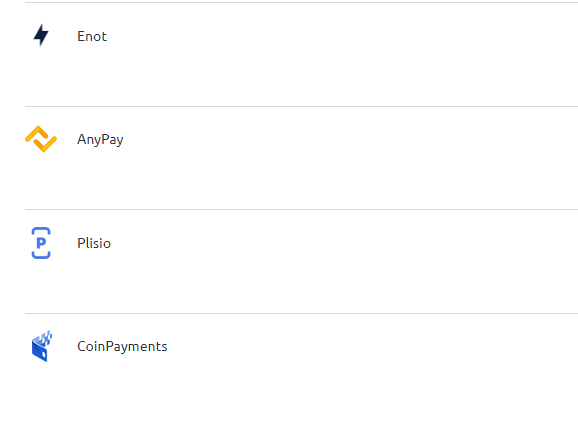
We choose a convenient payment method and pay the bill.
Return to the **Domains** tab and see that our domain name has been successfully activated!