> For the complete documentation index, see [llms.txt](https://spacecore.gitbook.io/wiki/llms.txt). Markdown versions of documentation pages are available by appending `.md` to page URLs; this page is available as [Markdown](https://spacecore.gitbook.io/wiki/en/minecraft/how-to-install-minecraft-java-server.md).
# Installing Minecraft Java Server
{% hint style="danger" %}
### This content is outdated
**The knowledge base has moved →** [**https://wiki.spacecore.pro/**](https://wiki.spacecore.pro/)
This wiki is no longer updated. All current guides and articles are at the new address.
{% endhint %}
{% content-ref url="" %}
{% endcontent-ref %}
***
In this guide, we will take a detailed look at the manual installation of the Minecraft server. Let's look at the popular server cores with you and learn how to install the server correctly.
## Some information
The instruction is suitable for both **VDS** and a fully dedicated server.
This article provides an example of installing the Paper kernel for Minecraft 1.16.5.
## The installation process
We create «**start**.**txt**» file in any folder on your computer (the name «**start**» is not a principle, you can use any).
Open the document and enter the startup command with all the necessary arguments for the server:
**java -Xms1024M -Xmx1024M -jar core.jar nogui**
{% hint style="info" %}
**-Xms512M** — the minimum amount of **RAM** allocated for the game server.
**-Xmx2048M** — the maximum amount of **RAM** that will be available to the server during operation.
**-jar** — the type of file to run.
**Core.jar** — the name of the core of the game server itself.
**nogui** — an argument for canceling the launch of the GUI, since we don't need it.
{% endhint %}
After changing all the arguments and names to suit your needs, we enter and save the configured startup command for our server:
```
java -Xms512M -Xmx2048M -jar paper-1.16.5-553.jar nogui
```
Rename the startup file from «**start.txt**» to «**start**.**sh**».
We send the file to the server in the folder with the kernel.
Next, we use the sh command in **SSH start**.**sh** to execute the script.
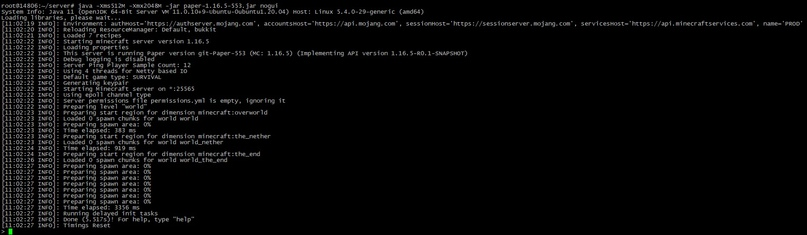
The server core has started and started installing additional files.
The launch has been stopped, you need to confirm the **Eula** agreement.
We go to **sFTP**, there are new server files there:
You need to open «**Eula.txt**».
We confirm the agreement by entering «**true»:**
Save, close the text editor, exit the window with sending the file to the server, press «**Yes**»:
Go back to **SSH** and use the sh command **start.sh** to restart the server.
For direct launch without **start.sh** just enter the command with the launch arguments into the console:
```
java -Xms512M -Xmx2048M -jar paper-1.16.5-553.jar nogui
```
## Cores for servers with mods
{% hint style="info" %}
Latest versions:
**Cauldron 1.7.10** —
**Thermos 1.7.10** —
{% endhint %}
## Question: how do I get access to the admin commands?
In the server console, you can grant yourself operator rights by writing:
```
/op
```